
An evening phone boundary can be designed to reflect a choice you want to make. Here is how to configure the relevant iPhone controls and pair the setting with a clear, realistic plan.
App Limits or Downtime: which one fits your boundary?
Choose App Limits when your boundary is about total usage, such as allowing 30 minutes of a social app each day. Choose Downtime when your boundary is about a time window, such as making selected apps unavailable from 9:30 p.m. until morning. Apple provides both controls within Screen Time. [2]
For a consistent evening boundary, Downtime is usually the closer match because it follows a start and end time. App Limits can still help if your aim is to use an app less across the whole day rather than restrict it only at night. [2]
- Use App Limits for a daily allowance.
- Use Downtime for scheduled evening hours.
- Check Always Allowed before turning on a broader restriction.
How do you set a daily App Limit?
Add the limit from Settings > Screen Time > App Limits. You can select app categories or individual apps, choose a daily duration, and customize the allowance for particular days. [2]
Use the shortest limit that still feels like your decision rather than a punishment. If weekends genuinely need a different allowance, configure them separately instead of creating a rule you already expect to ignore.
- Open Settings and tap Screen Time.
- Tap App Limits, then tap Add Limit.
- Select the categories or individual apps you want to include.
- Tap Next and choose the daily allowance.
- Use Customize Days if the allowance should vary by day.
- Review the settings, then add the limit.
How do you schedule an evening restriction?
Use Downtime to set a start and end time for the evening window. In Settings > Screen Time > Downtime, turn on the schedule and choose either the same hours every day or customized hours for different days. [2]
Next, inspect Always Allowed. Apps and communication options permitted there can remain available during Downtime, so keep what you reasonably need and remove anything that would undermine your chosen boundary. [2]
- Choose a start time that matches the moment you want to shift activities.
- Set an end time that accommodates how you use your phone in the morning.
- Consider different hours for work nights and weekends.
- Leave necessary tools available rather than making the schedule unnecessarily broad.
What should you decide before the schedule starts?
Decide what the rule is, why it matters tonight, and what you will do when the restriction begins. Pair the restriction with a specific alternative rather than leaving an empty space.
Illustrative example: “From 9:30 p.m. on weeknights, I will leave social apps unavailable. I want a quieter transition into the end of the day. When Downtime begins, I will put my phone on charge and read the novel beside my bed.” This is a template, not a prescription; your times and alternative can be different.
- Rule: What will be limited, and when?
- Reason: Why does this boundary matter to you this evening?
- Alternative: What small action will be ready when the window starts?
Where can Sicuur fit into the setup?
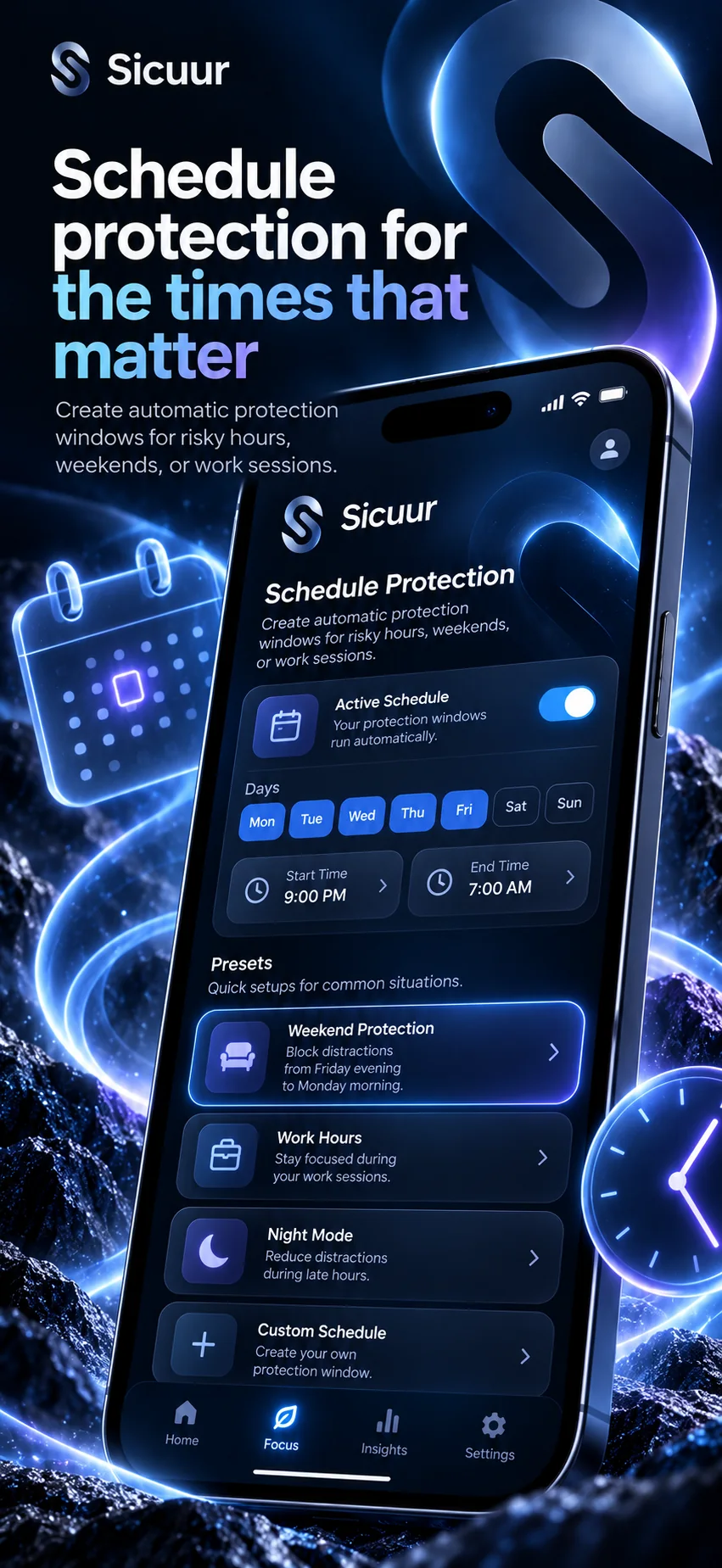
Sicuur can hold a personal plan containing your rule, why it matters, and an alternative action. Its optional device protection uses Apple Screen Time controls for selected apps and websites and can be scheduled in advance for one-off or repeating windows. [1]
If the boundary feels difficult in the moment, Sicuur also offers a guided 60-second Pause before you choose what comes next. The Pause does not guarantee that you will keep the rule; it creates a brief, structured point at which to reconsider the choice you made earlier. [1]
Sicuur’s optional protection depends on Apple Screen Time permissions and the configuration you select. You remain responsible for choosing the plan and the level of protection that fits it. [1] [2]
- Write the boundary while your intention is clear.
- Schedule optional protection for the relevant evening window.
- Use the guided Pause if you reconsider the plan later.
Review the boundary without judging yourself
After a few evenings, check whether the schedule matches your real needs. You might adjust the start time, narrow the selected apps, preserve access to a useful tool, or choose a more appealing alternative action.
Treat an override as information rather than a verdict. Ask what was happening, whether the boundary was too broad, and what one practical change would make the next attempt more workable. No Screen Time configuration or planning app can guarantee a particular outcome.
- Did the restriction begin at the right time?
- Were any necessary apps blocked?
- Was the alternative easy to start?
- What single adjustment would make the plan more realistic?
Common questions
Can I set different Screen Time limits for weekdays and weekends?
Yes. App Limits includes Customize Days, and Downtime can use customized daily schedules. This lets you choose different allowances or evening hours for particular days. [2]
Can I keep essential apps available during Downtime?
Yes. Review Screen Time’s Always Allowed settings and retain the apps or communication options you want available during the scheduled window. [2]
Does an App Limit start at a specific evening time?
No. An App Limit is a daily usage allowance. For a restriction that begins and ends at set times, configure a Downtime schedule instead. [2]
Can Sicuur schedule protection for only one evening?
Yes. Sicuur supports optional protection scheduled in advance for either one-off or repeating windows, subject to Apple Screen Time permissions and your selected configuration. [1]
Draft your evening rule
Complete three short prompts without adding sensitive details: “My rule is…”, “This matters to me because…”, and “When the boundary begins, I will…”. Keep each answer specific enough to use tonight.
A rule you choose for yourself.
Why it mattersYour reason can keep the choice personal.
Instead, I canChoose one small next move.
This example stays in this browser. It is not saved or sent by this page.
Choose a boundary you can recognize
Set the control that matches your intention, preserve access to what you need, and prepare one clear alternative. The goal is not to make the strictest schedule; it is to make your own evening choice easier to recognize when the time arrives.
Try Sicuur on iPhoneSicuur is available for iPhone. Use the App Store button above to view the listing.
Sources and product details
Product features are described from Sicuur’s current App Store listing. Apple’s Screen Time options can vary by device and software version.